CCTV Storage Calculator (NVR and DVR)
Enter your cameras, their bitrate and how long to keep recordings to get the storage you need.
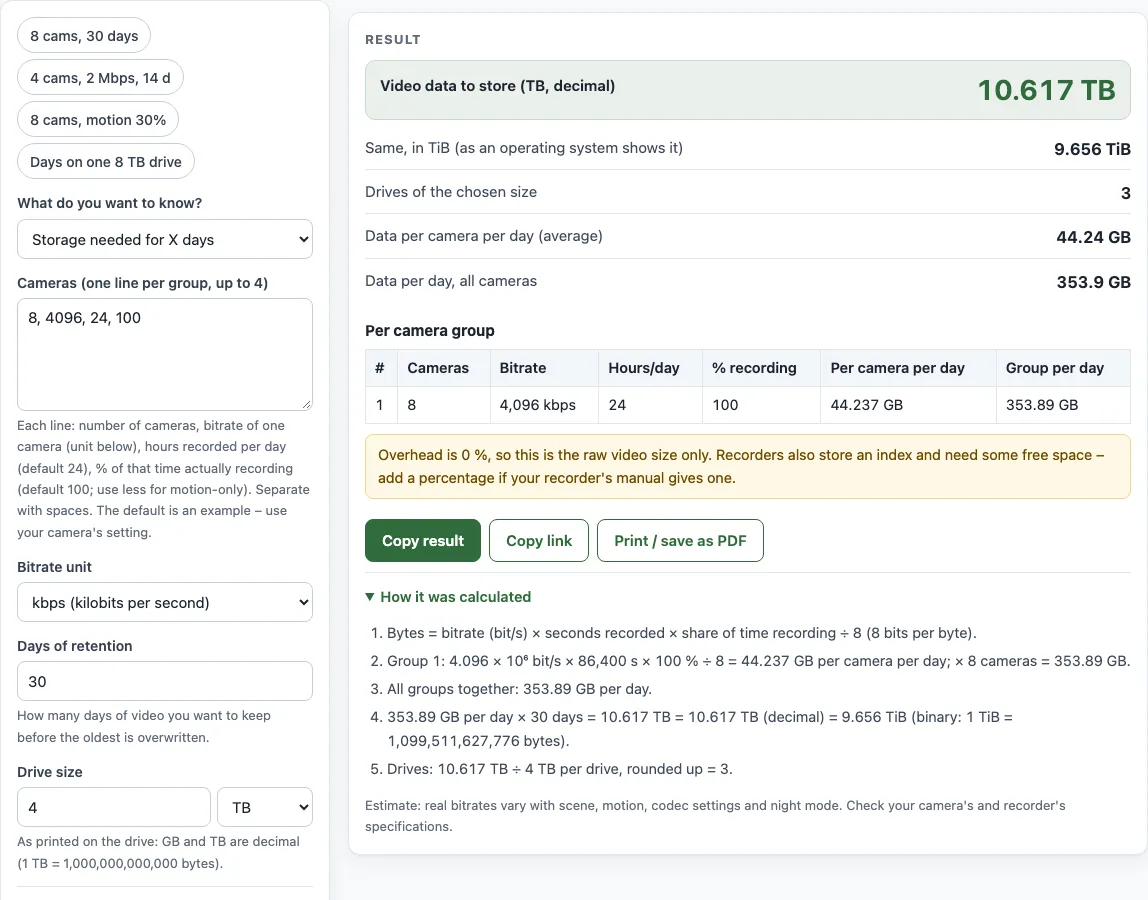
How to use the CCTV Storage Calculator
- Under What do you want to know?, choose Storage needed for X days if you know how long you want to keep footage, or Days that fit on my drives if you already have the disks.
- In Cameras (one line per group, up to 4), enter one line for each group of cameras that share a bitrate and schedule. Each line holds the number of cameras, the bitrate of one camera, the hours recorded per day (default 24) and the percentage of that time actually recording (default 100). Separate the numbers with spaces, for example
8 4096 24 100. - Set Bitrate unit to kbps or Mbps so it matches the number you typed. Take the bitrate from your camera or recorder settings.
- If you chose Storage needed for X days, enter the number of days in Days of retention.
- Enter the size of one drive in Drive size, as printed on the label, and the number of usable drives in Number of drives.
- If your recorder’s manual gives an overhead figure, enter it in Overhead (%). To keep part of each disk empty, enter a share in Free-space reserve (%). Both fields are under More options.
- Read the results (storage, drives, or days that fit) and open How it was calculated to check each step.
How is CCTV storage calculated?
Storage is the bitrate multiplied by the recording time, divided by 8 to turn bits into bytes. A camera at 4,096 kbps recording for 24 hours writes 4,096,000 × 86,400 ÷ 8 = 44.2 GB per day. Eight cameras at that rate for 30 days need 44.2 GB × 8 × 30 ≈ 10.6 TB.
How do I convert bitrate to storage per day?
Convert the bitrate to bits per second first: 1 Mbps is 1,000 kbps, and the bitrate must be in bits, not bytes. Then multiply by the seconds recorded per day, which is 86,400 for 24 hours, and divide by 8. The bitrate depends on resolution, frame rate, codec, scene complexity, motion and night mode. H.265 usually needs less bitrate than H.264 for similar quality.
Why does a 10 TB drive show about 9.1 TB?
Drive makers use decimal units, where 1 TB is 1,000,000,000,000 bytes. Operating systems often show binary units, such as TiB, where 1 TiB is 2⁴⁰ bytes. A “10 TB” drive therefore shows about 9.1 TiB. The calculator gives both the decimal result and the TiB result so you can compare with what your system reports.
How much overhead and free space should I allow?
Overhead covers the file system, index and audio, and is added as a percentage of the video. The default is 0%, so the result is only the raw video size. Enter your recorder’s figure if it lists one. Recorders also need free space, because they overwrite the oldest footage when a disk is full. The free-space reserve field lets you keep a share of each disk empty.
How does motion-only recording change storage?
Motion-only recording stores only part of the day. Multiply the hours and the percentage of time recording to estimate the data. For example, a camera set to 24 hours at 30% records about 7.2 hours of video a day. The percentage is your own estimate, since it depends entirely on how much activity your cameras see.
Sources
- Data units: SI decimal prefixes (1 TB = 10¹² bytes) and IEC binary prefixes (1 TiB = 2⁴⁰ bytes), per NIST: Prefixes for binary multiples.
- Bitrates are read from the camera; the tool has no typical values built in.
Worked examples
| Input | Result |
|---|---|
| 8 cameras, 30 days | 10.62 TB (9.656 TiB), 3 drive(s) |
| 4 cameras, 14 days | 0.5645 TB (0.5134 TiB), 1 drive(s) |
| 8 cameras, 60 days | 5.574 TB (5.069 TiB), 2 drive(s) |
| 8 cameras on 2 × 8 TB | 42.95 days of recording |
Calculated by the tool above with these values.
Frequently asked questions
How many days of CCTV footage should I keep?
There is no single retention period: your own policy, your insurer, or industry and privacy rules may set one, so check what applies to you before you set the number in Days of retention.
What bitrate should I enter for my cameras?
Take the bitrate from your camera or recorder settings, since it depends on resolution, frame rate, codec and scene. Check that the unit is kbps or Mbps as you typed it. A bitrate over 100 Mbps per camera is unusual, so a very large number often means the unit is wrong.
Can I use the result for a quote or material list?
Yes. Results may be used in commercial work such as quotes, material lists and job sheets, with no attribution needed. They are estimates for planning and ordering, so confirm the final drive size with your recorder’s manufacturer.
Why does my recorder show less space than my drive size?
Drive makers count in decimal units, but operating systems often count in binary units such as TiB, so a 10 TB drive shows about 9.1 TiB. Some recorders also reserve space for their own index and files. Use the overhead and free-space fields to allow for this.
Related tools
- IP camera bandwidth calculator — network bandwidth and upload for your cameras.
- Camera field of view calculator — angle of view, scene width and the lens to choose.
- Fence cost calculator — the materials list and total cost with your local prices.
- Chain link fence calculator — the full chain link materials list.
- Fence post spacing calculator — the number of posts and an equal spacing.
- Deck railing calculator — posts, balusters and rails for a deck.
- Security camera installation cost estimator — total and per-camera cost from your own prices.