IP Camera Bandwidth Calculator
Enter the number of cameras and their bitrate to get the bandwidth your network needs.
The IP Camera Bandwidth Calculator estimates how much network traffic a set of IP cameras sends, and what share of your switch uplink or internet upload that traffic uses. Enter the number of cameras and the bitrate of each camera’s main stream, and the result shows the total camera traffic and the share of the uplink it fills. It runs in your browser, is free, and needs no sign-up. Nothing you type is uploaded.
Use it before you buy a switch, choose a camera setting, or plan remote viewing. It helps you see whether the link to your recorder will still have room once every camera records at the same time.
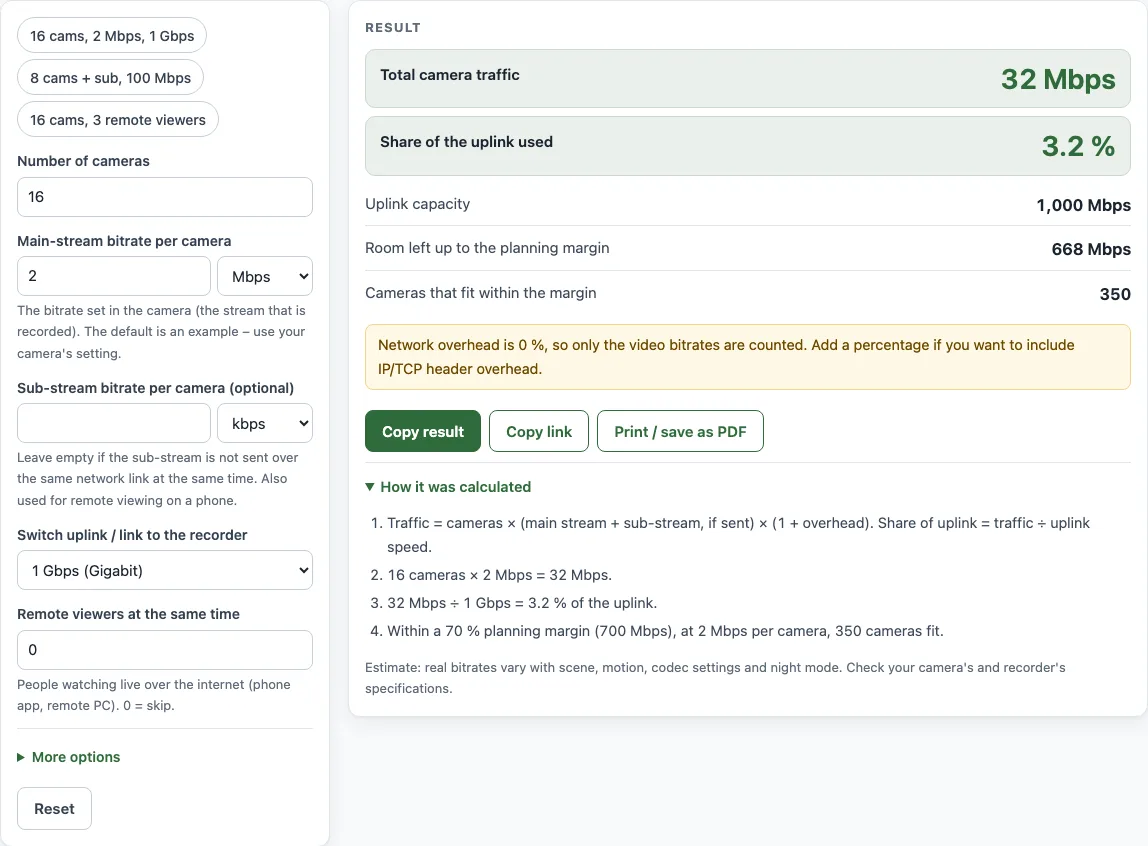
How to use the IP Camera Bandwidth Calculator
- Enter the Number of cameras.
- Enter the Main-stream bitrate per camera. Use the value set in your camera, since the default is only an example.
- If a sub-stream is sent over the same network link at the same time, enter the Sub-stream bitrate per camera (optional). Leave it empty if it is not.
- Choose the Switch uplink / link to the recorder: 100 Mbps (Fast Ethernet), 1 Gbps (Gigabit), or Custom. For Custom, type the speed in Custom uplink speed.
- Enter Remote viewers at the same time. Enter 0 to skip remote viewing. Then set Cameras each viewer watches and choose the Stream used for remote viewing: Sub-stream or Main stream.
- Enter your Your internet upload speed (optional) from your plan or a speed test, to compare it with the upload that remote viewing needs.
- Under More options, check the Network overhead (%) and the Planning margin (% of uplink).
- Read the results as you type. Check the warnings as well as the numbers.
The example buttons at the top of the form fill in a realistic case, so you can see how the fields work. The Reset button restores the starting example. Below the result, Copy result copies the figures, and Copy link copies a page address that keeps all your inputs. Print / save as PDF prints the inputs, the result, the calculation steps and the date.
How is IP camera bandwidth calculated?
Total camera bandwidth is the number of cameras multiplied by the bitrate per camera, plus any sub-stream and remote-viewing traffic. For example, 16 cameras at 2 Mbps send 32 Mbps in total, which is about 3.2% of a 1 Gbps link. The “How it was calculated” list shows each step with your own numbers.
Network headers add a little more. IP, TCP and UDP headers wrap each video stream, so the real load is slightly above the video bitrate. Enter a percentage in Network overhead if your vendor or network designer names one. The default of 0 counts only the video bitrates.
What bitrate should I enter for each camera?
The bitrate depends on the camera’s stream settings: resolution, frame rate, codec and quality. Read the value from the camera’s configuration page rather than guessing. Higher resolution, higher frame rate and higher quality all raise the bitrate.
The codec also matters. H.265 usually needs less bandwidth than H.264 for similar quality, so the same cameras may fit on a smaller link if you change codec.
Why do sub-streams and remote viewing count?
A sub-stream adds traffic only when it travels over the same link at the same time as the main stream. That is why the field is optional. Remote viewing is different because it uses your site’s upload speed, not the local switch.
Most recorders send a lower-resolution sub-stream to phones to save upload bandwidth. The tool works out the upload needed from the number of viewers, the cameras each viewer watches and the stream you choose. If remote viewing is set to the sub-stream, you must enter a sub-stream bitrate, or the tool will show an error.
Why keep headroom on the uplink?
Bitrates are not fixed. They rise with motion, rain or night noise, so sustained traffic can briefly exceed the average. Plan to keep the traffic well below the link capacity.
The tool compares your load with the Planning margin (% of uplink), which is 70% by default. This figure is a planning choice made to leave room for bursts. It is not an industry standard, so change it if your design needs a different value.
Cameras with 100 Mbps ports can each handle one stream easily. The uplink to the recorder, however, carries all cameras together, so it is the part to check first.
Sources
- Bitrates are read from the camera; the 70% planning margin is a design choice, not a standard.
- Bit-rate units: SI prefixes (1 Mbps = 10⁶ bit/s).
Worked examples
| Input | Result |
|---|---|
| 16 cameras at 2 Mbps, 1 Gbps (Gigabit) | 32 Mbps, 3.2 % of the uplink |
| 24 cameras at 4096 kbps, 100 Mbps (Fast Ethernet) | 121.7 Mbps, 122 % of the uplink |
| 8 cameras at 6 Mbps, 100 Mbps (Fast Ethernet) | 48 Mbps, 48 % of the uplink |
| 100 cameras at 4 Mbps, Custom | 400 Mbps, 4 % of the uplink |
Calculated by the tool above with these values.
Frequently asked questions
Is the IP camera bandwidth calculator free to use?
Yes. It is free, needs no sign-up, and runs in your browser. You can use the results in commercial work, such as quotes or job sheets, without giving credit.
Does the calculator upload my camera settings?
No. Everything runs in the browser, and nothing you type is uploaded.
What should I do if the result shows a warning?
Read the warning message, since it names the cause. If the cameras need more of the uplink than it can carry, use a faster uplink or lower the bitrates. If the load is only above your planning margin, consider a faster uplink or splitting the cameras over more switches.
Should I enter a network overhead percentage?
Only if your vendor or network designer gives you one. The default of 0% counts video bitrates only, and the tool shows a warning to remind you of this. Adding a percentage includes the IP, TCP and UDP header overhead.
Can I use the calculator to check my internet upload for remote viewing?
Yes. Enter your internet upload speed, and the tool shows the share of it that remote viewing uses. If the figure is above 100%, use the sub-stream, fewer cameras or fewer viewers.
Related tools
- CCTV storage calculator — hard drive size and days of recording.
- Camera field of view calculator — angle of view, scene width and the lens to choose.
- Fence cost calculator — the materials list and total cost with your local prices.
- Chain link fence calculator — the full chain link materials list.
- Fence post spacing calculator — the number of posts and an equal spacing.
- Deck railing calculator — posts, balusters and rails for a deck.
- Security camera installation cost estimator — total and per-camera cost from your own prices.